Since version 3.2, the Klipspringer hub includes the possibility to capture audio from an input device. My idea is to use it for getting music from my vinyl records into digital files, or just to listen to the records digitally with headphones when I’m sitting on the balcony or somewhere else away from my stereo. To capture audio from a turntable or other analog source, you need an ADC (analog to digital converter), but to capture from, say, a modern TV set, you just need to connect to the computer with a digital cable that both sides support. For analog capture, my setup is a Raspberry Pi 3 Model B+ with a Hifiberry DAC+ADC on top.
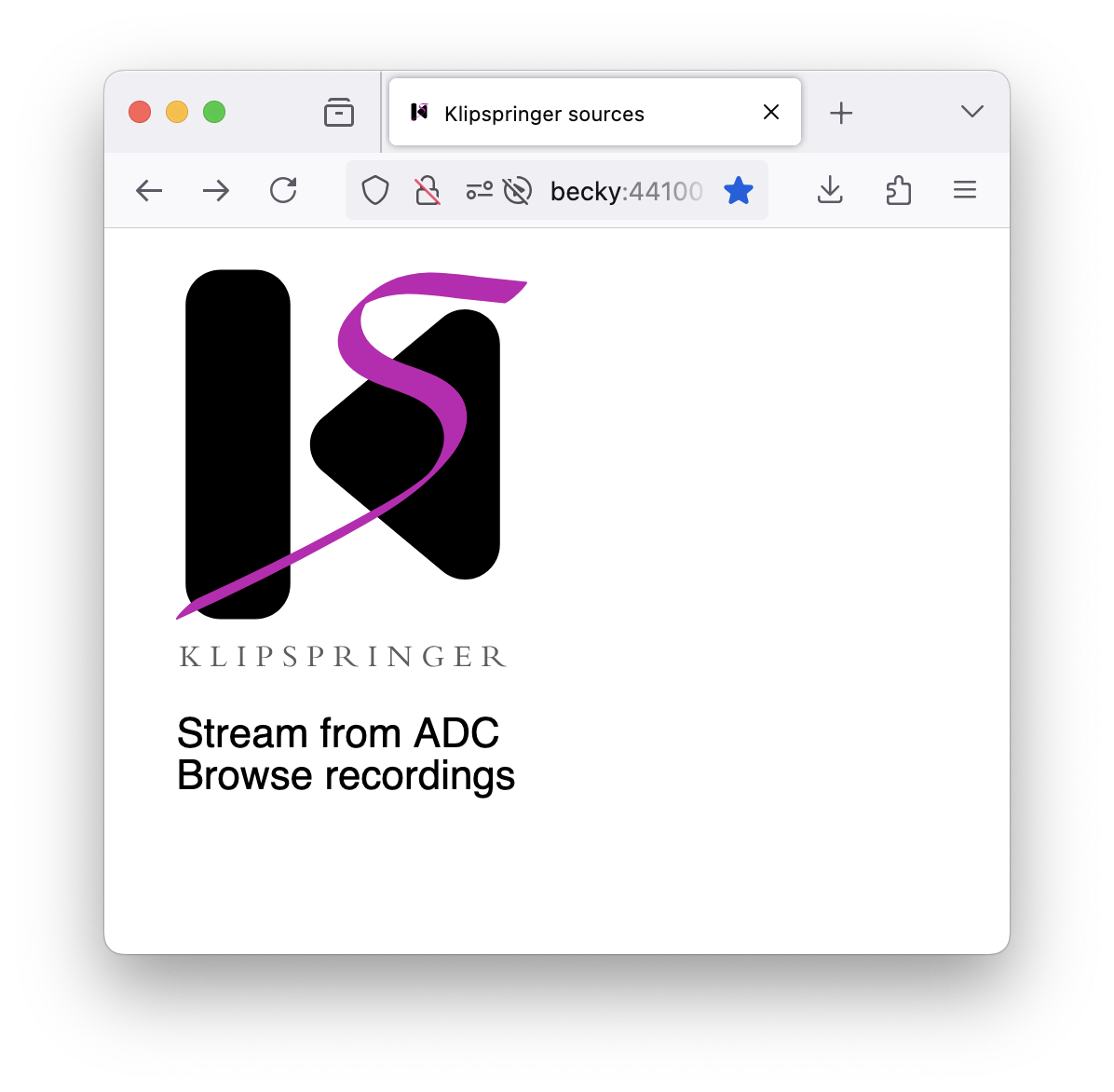
The host name of my Raspberry Pi is becky, and having installed and deployed the Klipspringer hub on it, I can direct a web browser to http://becky:44100 (where 44100 is the default port of the Klipspringer hub) which shows the two sources I have configured:
Choosing “Stream from ADC” sends the browser to a streaming page, where any input currently playing on my stereo can be heard after a second or so, and buttons to start and stop show up, along with inputs for changing audio format and maximum recording length:
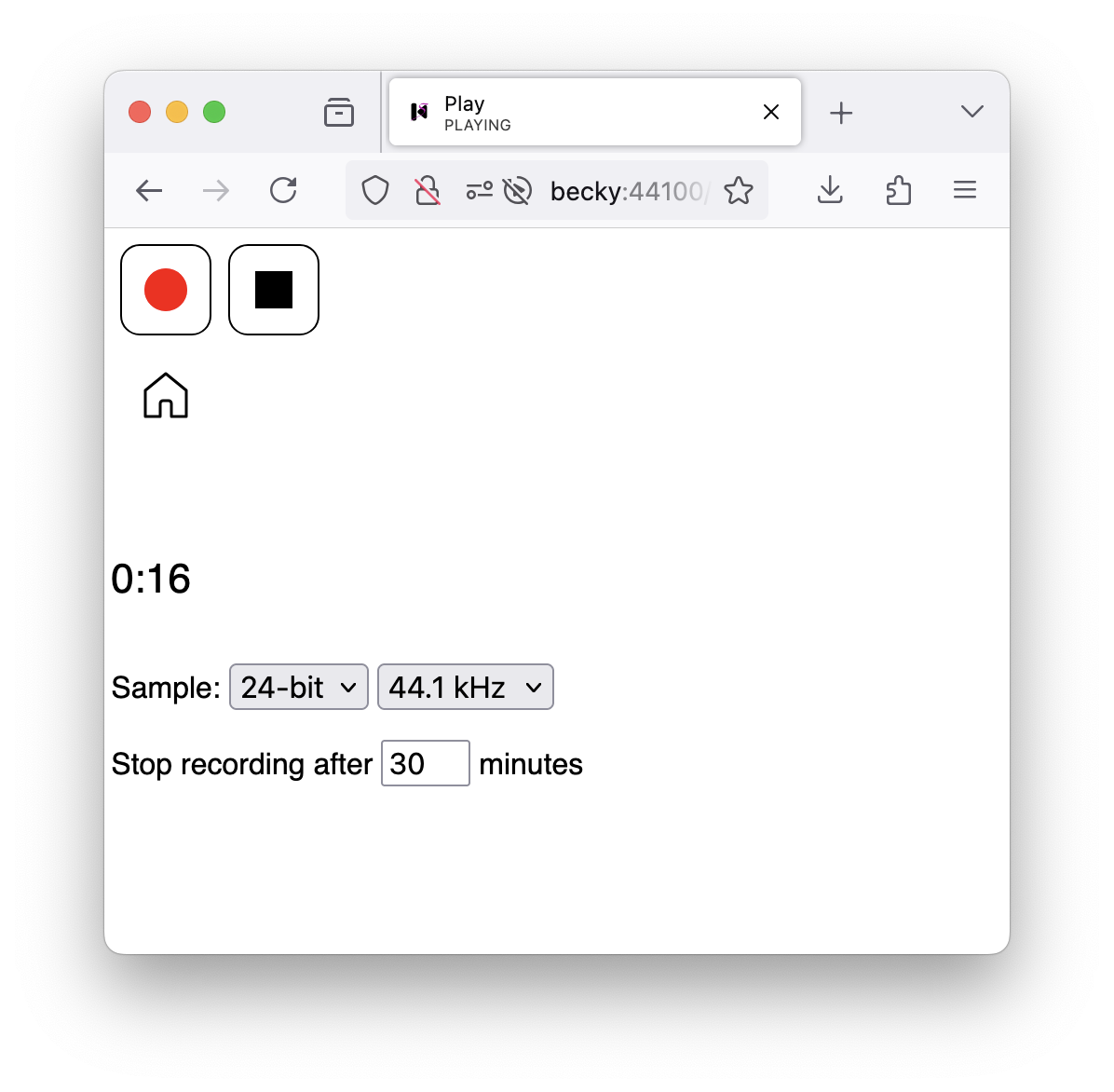
Clicking the record button (the red one) grays out the format inputs and displays a flashing red dot to indicate that audio is currently being stored in a file on the server. Recording stops when I click the stop button or the time limit is reached. Moving away from the page doesn’t stop recording (it only stops the streaming).
When a recording is done, it appears on the page that is selected with “Browse recordings” in the source menu, with buttons to play (streaming), download, or delete each file:
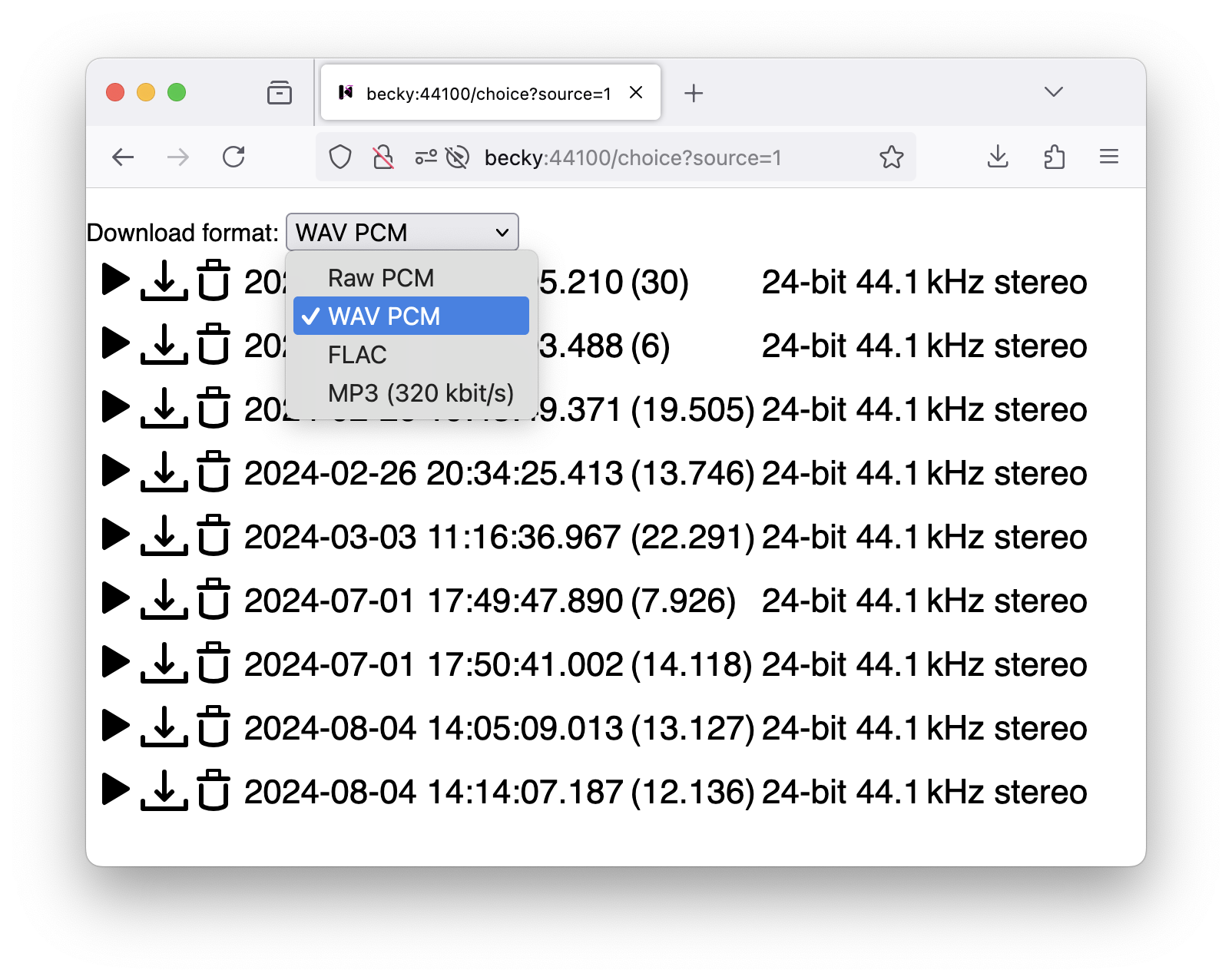
Download format is selected with the menu at the top. Available formats are:
- Raw PCM: uncompressed raw format, exactly as it was captured. Since raw format doesn’t include any header specifying the format (sample frequency, bit depth, etc.) this information is instead included in the file name in a form that can be used as parameters to the
soxcommand – unless the samples are padded with extra bits whichsoxdoesn’t support. (For instance, if the sample size is 20 bits padded with 4 bits to make a multiple of eight, the file name contains-b 20+4.) - WAV PCM: uncompressed audio with a header that most normal audio processing software can recognize, which doesn’t necessarily mean that it can play the format. (Again, SoX for instance doesn’t like padding bits.)
- FLAC (if Klipspringer was built with FLAC support): the lossless compressed audio format that I usually use for my music files.
- MP3 (if Klipspringer was built with LAME support): compressed audio that saves space by discarding parts of the sound that are difficult to hear by human ears. The bitrate is 320 kbits/s, which makes it close to indistinguishable from uncompressed audio.
- Ogg Vorbis1 (if Klipspringer was built with Vorbis support): a compressed audio format that is superior to MP3 in many technical aspects, and unlike MP3 is a completely open standard. Encoding is done with a variable bitrate at quality level 0.9, which is usually indistinguishable from lossless audio formats.
For raw format, the download starts immediately when you click the download button. For the others, the file must first be converted, which can take substantial time for large recordings. One possibility is to download the raw file and use klipcook – a command that comes with the Klipspringer installation – to convert it in the same way that the Klipspringer hub does.
Installation and configuration
Follow the instructions to install Klipspringer. Then you need to put a sources configuration in containing a devicestream and a recordings source in /etc/klipspringer-hub/sources.json. My file looks like this:
[
    {
        "label": "Stream from ADC",
        "player": "devicestream",
        "device": "klipalsa:hw:3",
        "bits_menu": [16, "24+8", 32],
        "rate_menu": [44100, 48000, 88200, 96000],
        "defaults": { "rate": 44100, "bits": "24+8", "channels": 2, "encoding": "signed" }
    },
    { "label": "Browse recordings", "player": "recordings" }
]
To find out what you should use for the device property, run the command klipdevices which comes with the Klipspringer installation. When I run klipdevices -i (where the -i is to only show input devices, since we are currently not concerned about outputs) on my Raspberry Pi, I get this:
pi@becky:~ $ klipdevices -i
"default [default]" (Direct Audio Device: default, default, default)
"sndrpihifiberry [plughw:3,0]" (Direct Audio Device: snd_rpi_hifiberry_dacplusadc, HiFiBerry DAC+ADC HiFi multicodec-0, HiFiBerry DAC+ADC HiFi multicodec-0)
"klipalsa:hw:3" (snd_rpi_hifiberry_dacplusadc, HiFiBerry DAC+ADC HiFi multicodec-0)
"klipalsa:plughw:3" (snd_rpi_hifiberry_dacplusadc, HiFiBerry DAC+ADC HiFi multicodec-0)
The last three of these four options are actually the same device accessed in different ways, and since there is no other input the default device is probably also the same one, so it would probably work if I just deleted the device property from the configuration. But if you have other inputs, it may be necessary to specify which one to use, and even if it isn’t you may want to specify in which of the available ways you want to access it (I know I do).
The last two are available only because I built Klipspringer with ALSA API support. If I didn’t have that, I would chosen "sndrpihifiberry [plughw:3,0]" for the device property, which is the name of the Java mixer to access the HifiBerry card. But I want to use the Klipspringer ALSA module that accesses the card directly, to make sure that nothing tampers with the audio on the way, so I choose the "klipalsa:hw:3" alternative. The one that says plughw instead of hw would also work, but it goes via the ALSA plug module to make format conversions.
I can list formats for the devices with the -f option to klipdevices, and I can specify which device I am interested in, so I use klipdevices -i -f "klipalsa:hw:3" to get:
pi@becky:~ $ klipdevices -i -f "klipalsa:hw:3"
klipalsa:hw:3
    Bit depths: 16, 24, 32
    Sample rates: 8000, 11025, 16000, 22050, 32000, 44100, 48000, 64000, 88200, 96000, 176400, 192000, 352800, 384000 Hz
    Channels: stereo
Actually, only the sample rates in the range 44.1–192kHz, which is listed in the data sheet of my hardware actually work. (I tested some of others and just got silence.) In any case, I am not interested in all of these options, so I pick the ones I want to enable with the bits_menu and rate_menu properties. There is also a channels_menu in case your hardware supports other numbers of channels than 2 (stereo). Note that I specified "24+8" for the 24-bit option, not just 24. This is because the HifiBerry card delivers 24-bit data padded to 32_bits (in ALSA terms, that’s SND_PCM_FORMAT_S24_LE, not SND_PCM_FORMAT_S24_3LE). Specifying just 24 would be equivalent to 24+0.
Klipspringer does what it can to convert between formats when it doesn’t influence quality, so you don’t have to worry about endianness or signedness.
The defaults field chooses, unsurprisingly, which values should be the defaults.
Finally, the recordings source doesn’t require any other configuration than the label to list as its menu option.