The Klipspringer hub uses a JSON configuration file sources.json to identify the resources it is supposed to access (groups of audio files for instance), and display as the top menu items in the web interface. The file is located in /etc/klipspringer-hub (unless something else is specified with the -etc option) and it contains a list (array) with one entry (object) per source.
Each source has a label property, used in the web interface top menu, and a player property that specifies what kind of source it is. Available player values are listed below.
A couple of properties that any source can have are options, which specifies player-specific options (some examples are shown below), and group, which can affect how the user interface (currently only used for a radio group, which influences the remote control interface). Other properties are player specific, listed below for the respective players.
kliptrack
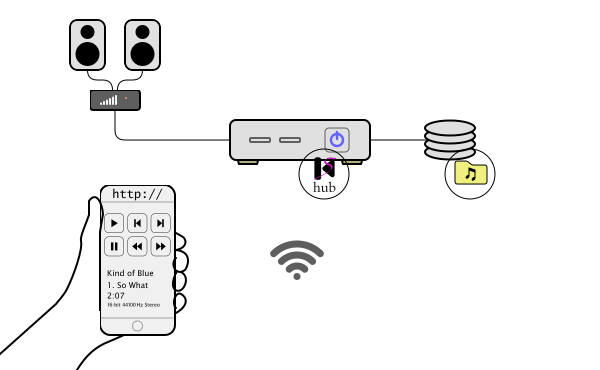
A kliptrack source is for playing audio files in FLAC, WAV or AIFF format on the audio output (connected to your stereo, for instance) using the standard track player. Which sound device to use can be specified with an option.
The required path and depth properties specify where audio files are found. The path is their top directory (folder) in the file system where the files are found, and depth is how many levels below that the actual audio files are, for example:
[
    {
        "label": "Play music on server",
        "player": "kliptrack",
        "path": "/path/to/my/music",
        "depth": 2
    }
]
Here, audio files are two levels down from /path/to/my/music, for instance like this:
/path/to/my/music/The_Beatles/Help/01.Help.flac
/path/to/my/music/The_Beatles/Help/02.The_Night_Before.flac
/path/to/my/music/The_Beatles/White_Album/01.Back_In_The_USSR.flac
/path/to/my/music/The_Beatles/White_Album/data/cover.jpg
/path/to/my/music/Grace_Jones/Nightclubbing/1.Walking_In_The_Rain.flac
/path/to/my/music/Grace_Jones/Nightclubbing/2.Pull_Up_To_The_Bumper.flac
When the user selects the source in the web interface, a menu appears for the first level below, with items “The Beatles” and “Grace Jones” in the example. If the user selects on “The Beatles”, a new menu appears where the user chooses between “Help” and “White Album”, and selecting one of those (reaching the depth value of 2) starts playback of the audio files in /path/to/my/music/The_Beatles/Help, with play control buttons appearing in the web interface. You can have other depths than 2, but one level for artist and one for album is the standard that makes the interface look its best.
Directories on the same level as the audio files are ignored, except if there is one called data, which can contain:
- Picture files ending in
.jpeg,.jpg,.gif, or.png. These are displayed in the web interface along with the play control buttons. - A file
mix.json, whose content is assumed to be instructions for how the tracks should be crossfaded into each other, and is supplied to the track player as the argument to its-mixjsonoption.
If you have a different convention for naming your audio files, you can use the -track-re option to specify a regular expression for your file names. The regex should contain two parenthesized groups: the first one for track number and the second for track title. If your file names don’t match the regex, the whole filename is used as title. If your sources are collections of files with different naming standards, you can override -track-re for one or more of them with the options property, like this for instance:
    {
        "label": "Play flac tests",
        "player": "kliptrack",
        "path": "/Users/jesper/Music/flac-test-files-main",
        "depth": 1,
        "options": { "-track-re": "([0-9]+) - (.+)\\.flac" }
    },
The audio device is specified globally with -joutput (it’s the destination, not the source), but if you want different sources played on different outputs, you can use the options property for that as well, to override joutput with by specifying the -output parameter to the track player using -jtrackopts. For instance, this source will always be played on the laptop speakers on my Mac (and not on connected headphones):
    {
        "label": "Play on speakers", "player": "kliptrack", "path": "/Users/jesper/soundfiles", "depth": 2,
        "options": { "-jtrackopts": [ "-output", "MacBook Air Speakers" ] }
    },
The optional phones_mirror attribute (added in version 4.0.5) can be used to specify a source that mirrors the same audio file path for streaming with an audiostream source. The property value should be the source number (the index, starting from zero) of the corresponding source. A headphones button appears in the player control interface, to switch to streaming the audio currently being played.
audiostream
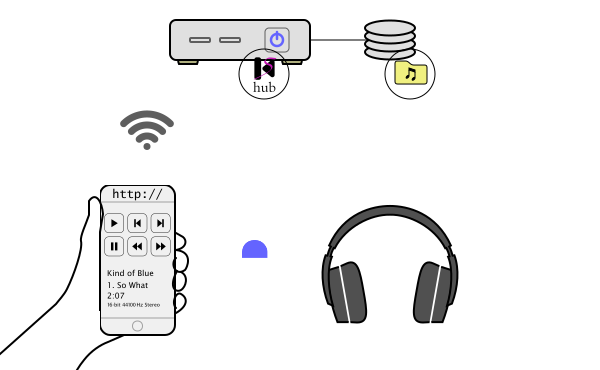
The audiostream player operates exactly like kliptrack, except that instead of starting playback on a server audio device, it streams audio data to be played by the web browser on the client device (to which you can connect your headphones, for instance).
Streaming format can be specified with the -streamtypes option, whose value is a priority list. For instance, ["flac", "ogg", "mp3"] means that FLAC format should be tried first, then Ogg Vorbis if FLAC isn’t supported by the web browser, and finally try MP3 format if Vorbis isn’t supported. A fourth format is Ogg FLAC, indicated by "oga" in the format list.
Streaming in FLAC format requires libFLAC (version 1.5.0 or later is needed for Ogg FLAC), Ogg Vorbis requires Vorbis API, and MP3 format requires LAME.
Properties of audiostream are exactly the same as for audiostream. Here is an example that exposes the same collection of files for streaming as for playing on the server:
[
    {
        "label": "Play music on server",
        "player": "kliptrack",
        "path": "/path/to/my/music",
        "depth": 2,
        "phones_mirror": 1
    },
    {
        "label": "Stream music to client",
        "player": "audiostream",
        "path": "/path/to/my/music",
        "depth": 2,
        "speakers_mirror": 0
    }
]
The optional speakers_mirror attribute (added in version 4.0.5) can be used to specify a source that mirrors the same audio file path for server-side playback with a kliptrack source. The property value should be the source number (the index, starting from zero) of the corresponding source. A speakers button appears in the player control interface, to switch to server playback of the audio currently being streamed.
devicestream
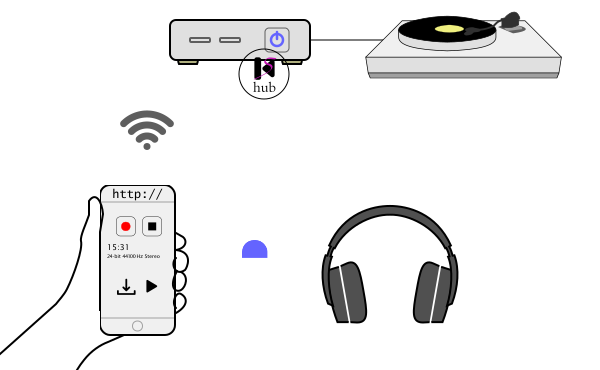
The devicestream player captures live audio from the server (using the device player), recording and/or streaming it to one or more clients. The -streamtype option can be used to specify the streaming format just like for audiostream.
Here is an example sources.json with one devicestream and one recordings (see below).
[
    {
        "label": "Stream from ADC",
        "player": "devicestream",
        "device": "klipalsa:hw:2",
        "bits_menu": [16, "24+8", 32],
        "rate_menu": [44100, 48000, 88200, 96000],
        "channels_menu": [1, 2],
        "defaults": { "rate": 44100, "bits": "24+8", "channels": 2, "encoding": "signed" }
    },
    { "label": "Browse recordings", "player": "recordings" }
]
Selecting the devicestream item in the web browser brings up a streaming page with record and stop buttons, and (optionally) menus for selecting audio format.
The optional device property can be used to specify audio input device. Names of available devices can be found with the klipdevices command.
Optional defaults can be used to override audio format defaults rate (44100), bits ("24+8" meaning 24 significant bits padded with 8 zero bits), channels (2), encoding ("signed"), and bigendian (false).
Optional properties rate_menu, bits_menu, and channels_menu specify menus for audio format selection to appear in the web interface.
recordings
The recordings player is intended to accompany devicestream (see example above). It displays a list of recordings in the web browser, with buttons to play (streaming audio to the client just like devicestream and audiostream), download, or remove the recording files. It has no additional properties.
vlc
The vlc player invokes the separately installed VLC program. It is intended to be used for playing internet streams or hardware devices (such as a CD drive) and can potentially be used for other kinds of inputs as well. Here is an example of a source.json file that specifies a CD player and an internet radio stream:
[
    { "label": "CD player", "player": "vlc", "url": "cdda://", "device": "/dev/sr0" },
    { "label": "NTS Live", "player": "vlc", "url": "https://stream-relay-geo.ntslive.net/stream" }
]